
Appearance
Session Recording and Playback
Purpose
Record terminal sessions so you can replay, search, and export the captured content later.
Entry
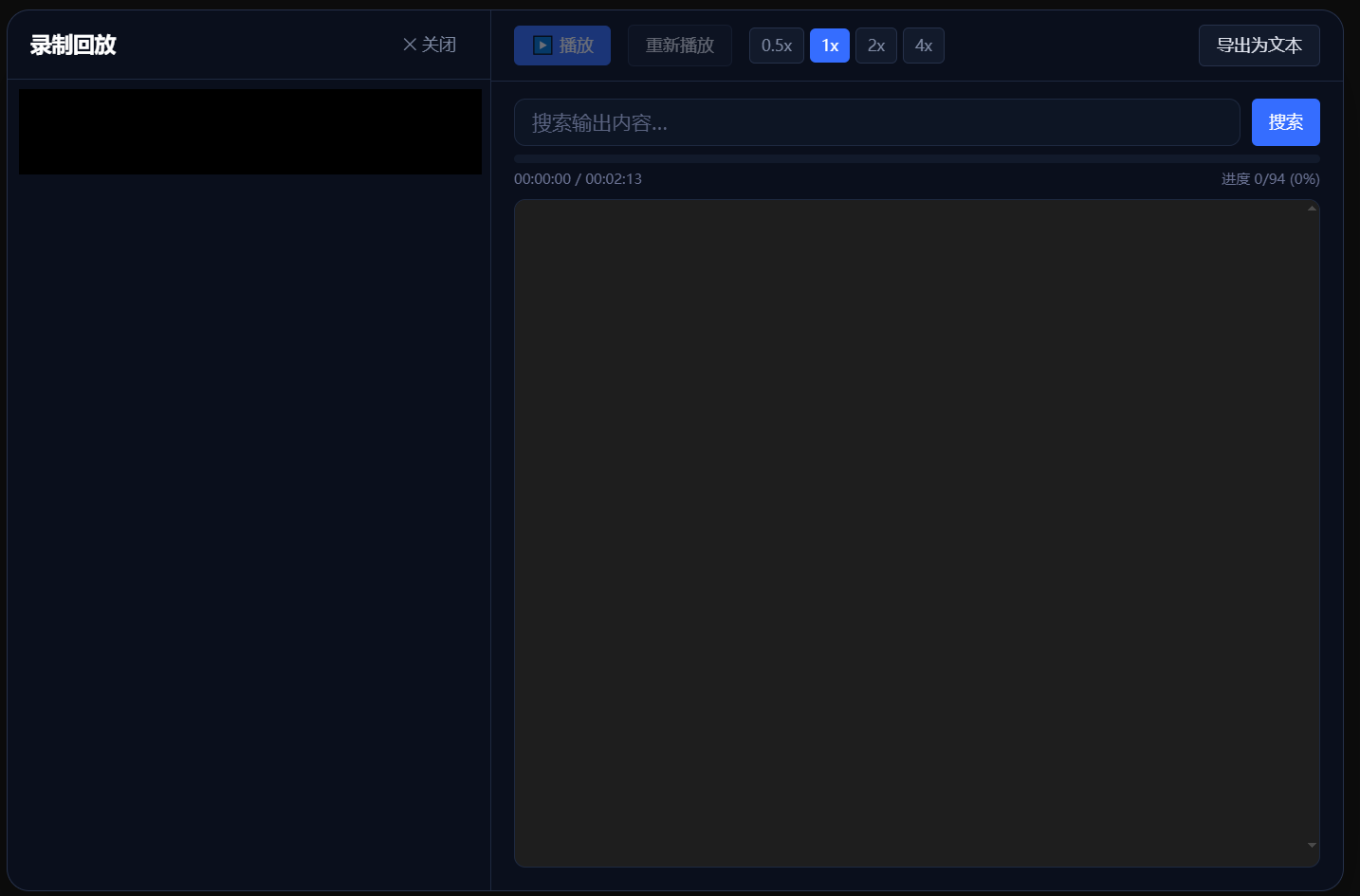
Enable session recording and choose a storage path in Settings → General. Open recording playback from the bottom status bar.
Steps
- After enabling session recording globally, turn on the recording switch in the target connection tab. You can also enable it for an already connected session.
- Open recording playback from the bottom status bar and select a recording to replay it, or search for a keyword.
- Delete recordings you no longer need, or export them for retention and sharing.
Know Before You Use It
Recordings may include input and output, including passwords, private keys, tokens, command arguments, and server responses. Sensitive information may not be fully hidden. Restrict access to recording folders and exported files.
Failure Handling and Safety
If recording or playback fails, check the storage path, disk space, and file permissions. Replay and inspect a recording before sharing it, and remove information that should not be exposed.